Excel Debt Payoff Template: Build a Plan You Can Check
Excel debt payoff template guide: organize balances, rates, minimums and payments, then check how Excel 365 and older versions handle your workbook.
By Debt Payoff Planner by Cosmo Suite · Editorial policy
Published · 8 min read
An Excel debt payoff template is a workbook for recording debts and, depending on its formulas, estimating how payments change their balances over time. It can turn a scattered list into a plan you can review: one row per debt, the required payment beside the balance, and a visible order for any extra money. Use current statement figures, write down what the formulas assume, and note when to check the numbers again.
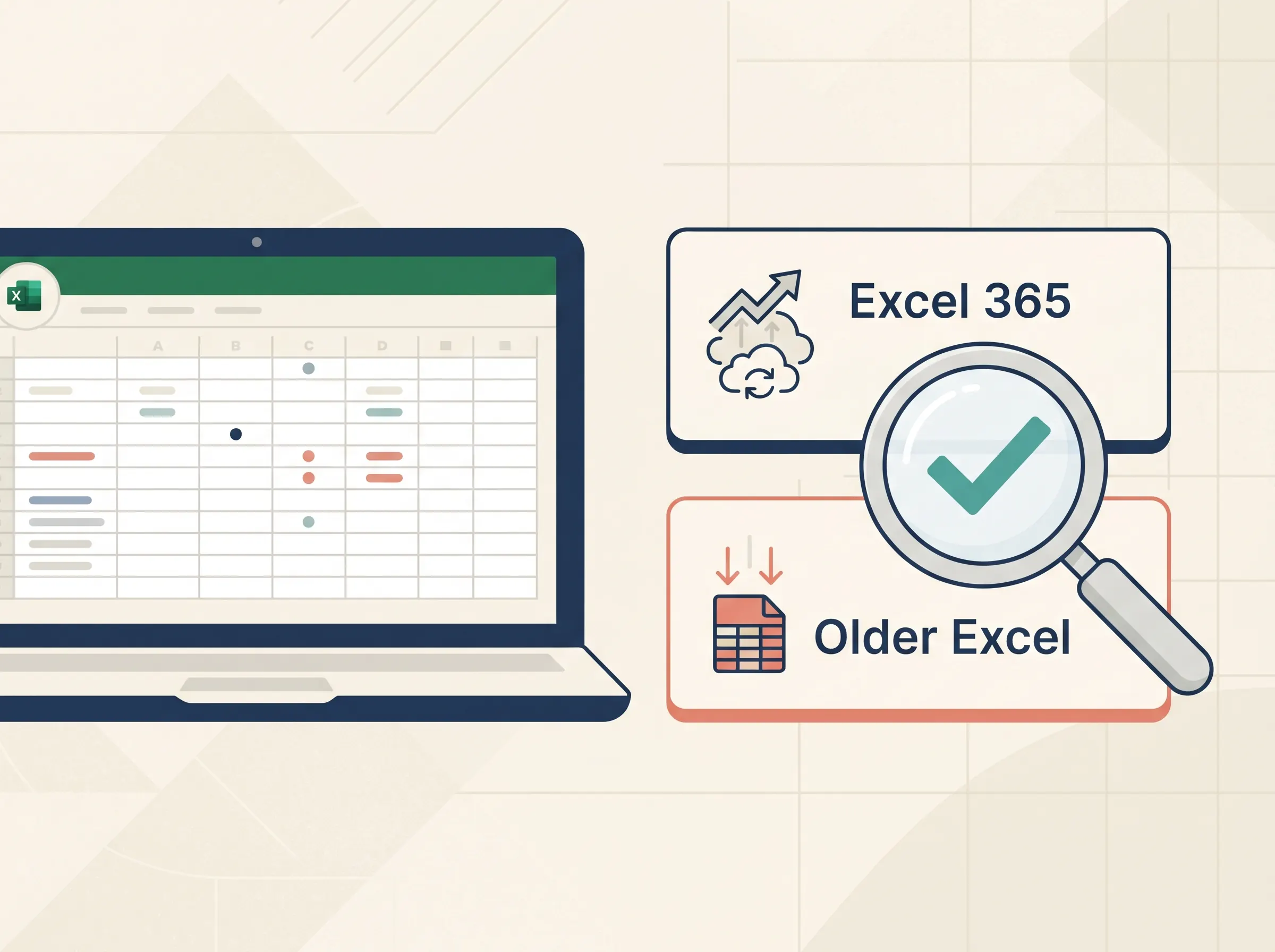
An older copy of Excel may open a workbook but handle some newer formulas differently. Before you enter your real figures, make a copy, confirm the template's version requirements, and test the totals with sample data. This guide shows the fields to look for, a simple worked example, and a compatibility check for Excel 365 and older versions.
From the sample below:
- Payoff order: store card, dental bill, credit card, then auto loan.
- Debt-free month: not projected here; the example shows a tracking layout, not a payoff calculator.
- Change to test first: replace sample balances, APRs and minimums with current statement figures.
Excel Debt Payoff Templates at a Glance
Use a workbook whose functions match your Excel version and whose method matches the job you want it to do. Some files record balances and payments; others calculate estimates. Check both before you start.
| Template type | What it does | Check before using | Best for |
|---|---|---|---|
| Blank tracker | Stores balances, APRs, minimums and dates | Whether it includes formulas | A manual monthly review |
| Payoff calculator | Estimates a schedule from inputs | Interest, payment timing and fee assumptions | Comparing a scenario |
| Excel 365 workbook | May use newer functions or dynamic arrays | Version notes and formula support | A current Microsoft 365 install |
| Older Excel workbook | Uses functions available in that version | Missing function warnings and calculation results | A specific older desktop version |
Microsoft's compatibility guidance explains that functions introduced in later Excel releases may not be available in earlier ones. Its Compatibility Checker can flag issues when saving for an earlier version. A workbook that opens is not proof that every formula produced the intended result.
Running It on Example Numbers
Which row gets the extra $120? The sample list below is ordered smallest to largest, a snowball order. It is illustrative only. It does not estimate payoff months or interest because the timing and calculation rules are not specified.
| Order | Debt label | Balance | APR | Minimum | Due date | Planned payment |
|---|---|---|---|---|---|---|
| 1 | Store card | $575 | 0% sample rate | $40 | 8th | $160 |
| 2 | Dental bill | $1,200 | 0% sample rate | $60 | 15th | $60 |
| 3 | Credit card | $3,100 | 24% sample rate | $90 | 21st | $90 |
| 4 | Auto loan | $7,600 | 7% sample rate | $260 | 27th | $260 |
| Total | $12,475 | $450 | $570 |
The planned total is $570: $450 in sample minimums plus $120 extra. The store card receives $160, its $40 minimum and the $120 extra. On the credit card row, a simple monthly-rate estimate gives about $62 interest ($3,100 × 24% ÷ 12) against the $90 minimum, leaving about $28 to reduce the balance. This estimate uses a simple monthly rate; it is not a statement figure, and the issuer's calculation and payment timing may differ. The table demonstrates how to keep the order and payment visible. The rates, balances and dates are fictional sample data, not typical terms.
If you use a calculator that estimates a debt-free date, check its method before treating that date as a forecast. Credit-card interest depends on the issuer's terms, transaction types, billing cycle and payment timing, so a simple monthly-rate calculation may not match a statement. Use the creditor's current figures for the plan you maintain.

What Should Go in Each Excel Row?
Start with fields that let you identify and recheck the account. A compact table is easier to keep current than a workbook full of columns you do not use.
- Debt label: use a private nickname such as “Card A.” Avoid account numbers or other sensitive details in a file you may share.
- Current balance: copy the figure from the latest statement or creditor account. Add a “checked on” date.
- APR: record the rate that applies to the balance you are tracking. If purchases, transfers or cash advances have different rates, mark the difference and confirm it with the issuer.
- Minimum and due date: enter the current required payment and the date shown by the creditor. Use the spreadsheet as a record. Follow creditor notices and make payments through the creditor's own process.
- Planned payment and payment made: keep the plan separate from what actually posted. Update the actual column after checking the account.
- Order and notes: write why the next extra payment goes to a particular balance. Note a changed rate, fee, or question to check later.
The CFPB's debt worksheet uses fields such as the amount owed, interest rate, monthly payment and payoff goal. Those fields are a sound starting point for your own tracker. Add detail only when it answers a question you will review.
For a basic total, if the balances sit in cells C2 through C5, =SUM(C2:C5) adds those four cells. Change the range if your list has a different number of rows. This formula only totals balances. It does not calculate interest, pick a payoff order or predict a date. Keep those jobs separate so a simple total is not mistaken for a full payoff model.
In the sheet: keep the source date beside each changing figure. That small habit makes an old balance easier to spot than a second dashboard does.
Excel 365 and Older Versions: What Changes?
The main compatibility issue is not the age of the debt list. It is the functions and workbook features used to sort, calculate or display it. Microsoft's formula compatibility guidance says functions introduced in later Excel releases may not be available in earlier ones. Its dynamic array guidance explains how formulas can spill results into nearby cells and behave in versions without dynamic-array support.
Before using a template, check its notes for the required Excel version. If you already have the file, work from a copy and test it in the version you plan to use. Watch for an error name in a formula cell, a blank result where a total should appear, or a sorted list that leaves out a row. Do not overwrite the only copy while checking compatibility.
If you need to share a workbook with someone on an older version, Microsoft recommends running the Compatibility Checker and reviewing any significant functionality issues before saving to an older format. Saving a file as .xls may still leave features unsupported. Use the checker and confirm the formulas and outputs you rely on.
[Unique insight] Compatibility and calculation accuracy are separate checks. A sheet can display a number even when a formula uses assumptions that do not match your account. Check whether the file assumes a monthly rate, when payments are applied, and whether it includes new purchases or fees. If those details are not explained, treat its payoff date as a rough scenario, not a creditor promise.
How Do You Check a Template Before Adding Your Data?
What should you test before adding your figures? Start with fictional values to see what the workbook calculates and whether its output changes when you edit an input.
- Save a separate copy. Keep the original download untouched so you can reopen it if a test breaks a formula.
- Enter sample values. Use clearly marked test balances and minimums. Check that totals match the visible rows.
- Change one input. Edit one balance or payment and see which cells update. If a result changes unexpectedly, inspect the formula or instructions.
- Check the order. If the sheet sorts debts, make sure every row remains attached to the correct label after sorting. A balance should not become paired with another creditor's due date.
- Try your Excel version. Open the copy on the device and version you intend to use. Review formula errors and compatibility notices.
- Read the assumptions. A projected schedule may assume a fixed extra payment, monthly interest, or no new charges. If those assumptions do not match your situation, the estimate can drift from statements.

If the workbook is a tracker, it may not calculate interest or dates at all. If it is a calculator, its projected month remains an estimate based on your inputs and its assumptions. Check current statements and creditor terms when you update your plan.
When Is a Debt Payoff Spreadsheet a Better Fit?
An Excel file can fit when you want to keep a list on your own device and review the numbers yourself. A paper worksheet can be enough for a short list you update by hand. A calculator can help compare a scenario, but you should understand how it handles interest and payment timing. If you prefer to enter figures in a cloud spreadsheet, the Google Sheets debt tracker guide covers that separate setup.
If you are choosing between smallest-balance and highest-rate order, compare both on your own list. Snowball order gives the extra payment to the smallest balance after minimums. Avalanche order sends it to the highest APR. The order changes where extra money goes; it does not change the need to keep required minimums current. See this guide to choosing a debt payoff spreadsheet and checking what it includes and the debt snowball worksheet fields and rollover example.
When you want one file to compare snowball and avalanche, Debt Payoff Planner, the snowball and avalanche spreadsheet for Excel and Google Sheets includes up to 40 debts, a side-by-side view and an auto-sorted payment schedule. Check the product page for the included files and requirements before deciding if it fits your setup.
How We Put This Together
We're the Cosmo Suite team behind this spreadsheet. We checked Microsoft's Excel compatibility guidance and the CFPB debt worksheet on 5 November 2026. The table uses fictional sample data to demonstrate fields and order. This is general information, not financial advice.
Last updated: 5 November 2026. Editorial check: the Blog Writer will revisit this post at the next scheduled source review, or sooner if Microsoft changes its Excel compatibility guidance.
Sources
Frequently asked questions
What should an Excel debt payoff template include?
Start with a debt name, current balance, APR, minimum payment, due date and payment made. Add the payoff order and a date checked. If you use formulas, label how interest and payment timing are handled.
Can I use an Excel debt payoff template in older Excel?
It depends on the workbook's formulas and features. Microsoft says functions introduced in newer versions may be unavailable in earlier ones. Check the template's stated compatibility and test a copy in your own version.
Does an Excel debt payoff spreadsheet calculate interest?
Some templates calculate interest and estimated payoff dates, while others only record balances and payments. Read the included instructions and check the assumptions before relying on a projected schedule.
Should I use the snowball or avalanche method in Excel?
Snowball orders debts by balance, smallest first. Avalanche orders by interest rate, highest first. Keep required minimums current and compare both orders using your own figures and priorities.
Sources
Keep reading
Spreadsheets and Tools
Debt Payoff Spreadsheets That Pick Your Order (Matched to Your Debts)
Debt payoff spreadsheet basics: the 6 columns it needs, how it picks your payoff order, and a 4-card example worked out to a real debt-free month.
· 8 min read
Spreadsheets and Tools
Debt Snowball Worksheet: What to Fill In and How to Roll Payments Over
Debt snowball worksheet guide: list balances, minimums and due dates, sort smallest to largest, then track each rollover with a clear sample layout.
· 7 min read
Spreadsheets and Tools
How to Set Up a Debt Snowball Spreadsheet (Without Writing Formulas)
Debt snowball spreadsheet setup in 5 steps for Excel or Google Sheets, with the rollover explained and a 4-debt example worked out to April 2029.
· 7 min read
